
If you have a list of addresses and need their coordinates, or you have GPS points and want to know the corresponding address, I built a simple web application for exactly that purpose: LiKoToN AutoMapa Geocoder.
The application runs directly in a web browser, requires no installation, and uses the AutoMapa API. Below you will find a detailed overview of its capabilities.
What is it for?
The application provides two main functions, each available both for a single record and for bulk file processing:
- Geocoding converts an address into geographic coordinates and normalizes it. For example, address variants such as Chopina 8 and Szopena 8 will return the same normalized address and coordinates.
- Reverse geocoding attempts to match coordinates to the nearest address.
The application is divided into four tabs: Geocoding, Reverse geocoding, Import and Settings.
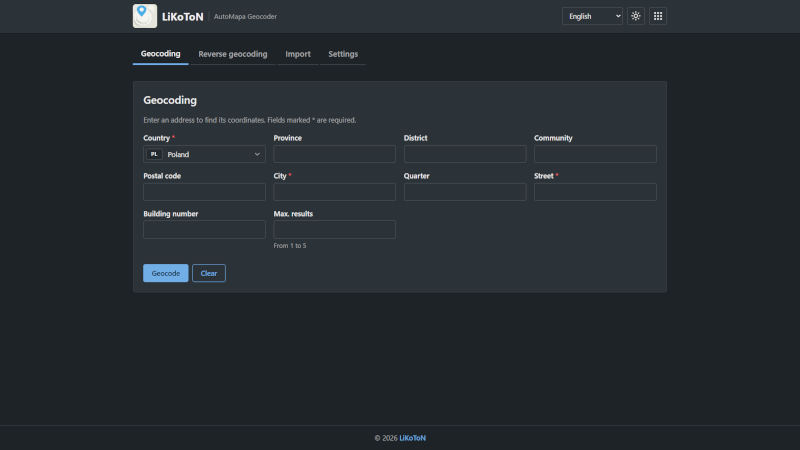
Single Address Geocoding
The form accepts a structured address consisting of:
- Country
- Province
- Quarter
- Community
- Postal code
- City
- District
- Street
- Building number
The required fields are:
- Country
- City
- Street
The remaining fields can be hidden in the settings to keep the form compact.
Countries are limited to Europe. The list displays both the country code and country name, with Poland selected by default. Countries can be searched by typing part of their name, and pressing a letter key jumps to the first matching entry. Country names are displayed in the currently selected interface language.
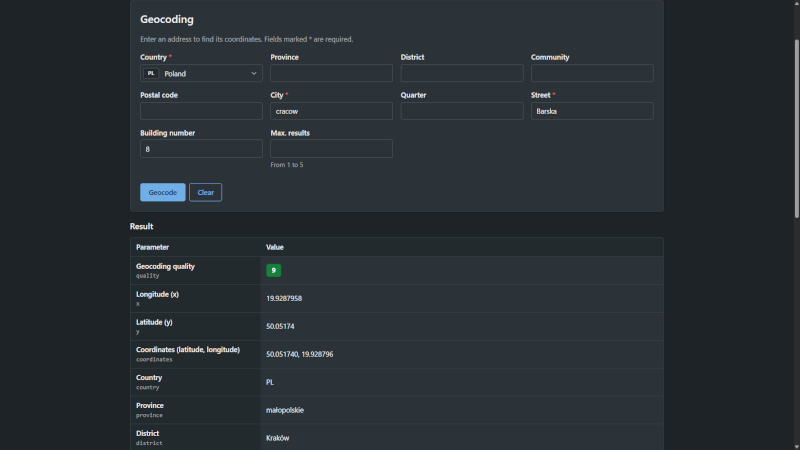
Results are presented in a table. Along with the X and Y coordinates, you receive a ready-to-use coordinate pair in the form: latitude, longitude.
The coordinate format can be changed in the application settings:
- Decimal Degrees (DD)
- Decimal Degrees with Hemisphere Indicators
- Degrees and Decimal Minutes (DMM)
- Degrees, Minutes, and Seconds (DMS)
The result can also be displayed on a map.
Geocoding quality
Each result is assigned a quality score ranging from 0 to 9, displayed as a color-coded badge.
Hovering over or clicking the badge opens a legend explaining each score:
| Quality | Meaning |
|---|---|
| 9 | Exact match; a single typo in the street name is tolerated when the postal code matches |
| 8 | Approximate match; incomplete address or only a similar street name found |
| 7 | Street found, but house number missing |
| 6 | Approximate street and house number match; manual verification recommended |
| 5 | unused |
| 4 | unused |
| 3 | City found, but not the street |
| 2 | Only city or district found with an exact name match |
| 1 | Only city found; approximate match |
| 0 | No result |
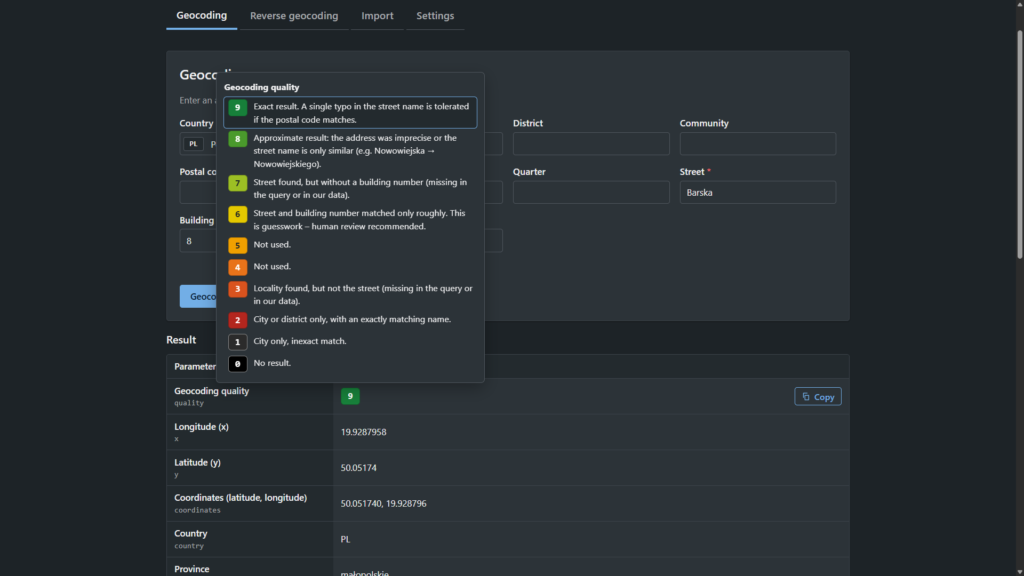
This makes it easy to determine which results can be trusted and which should be reviewed manually.
In the results table, hovering over any row reveals a Copy action that copies the row contents to the clipboard.
Reverse Geocoding
For reverse geocoding, you enter a latitude and longitude.
Supported formats include:
- Decimal coordinates (using either a period or comma as the decimal separator)
- Degrees, minutes, and seconds, for example: 52°14’51.9″N
If a complete coordinate pair such as 52.2477621, 21.0147724 is pasted into the first field, the application automatically splits it into latitude and longitude fields.
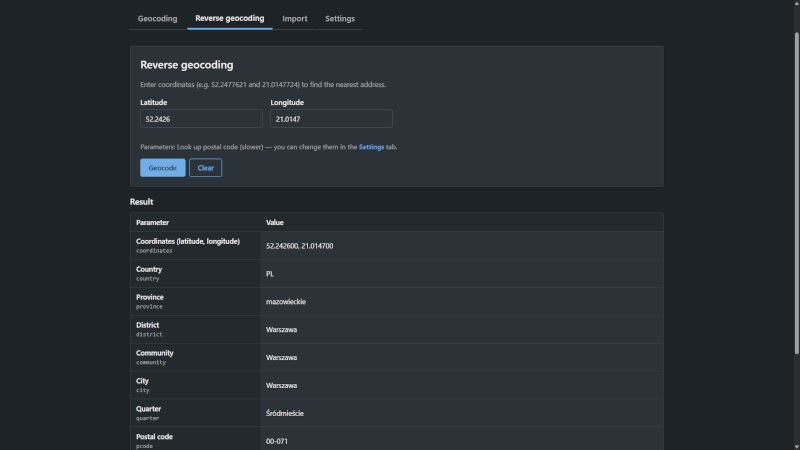
Additional reverse geocoding parameters are available in the settings, including:
- Snapping the result to the nearest building
- Configurable search radius (in meters)
- Postal code retrieval
Bulk data import
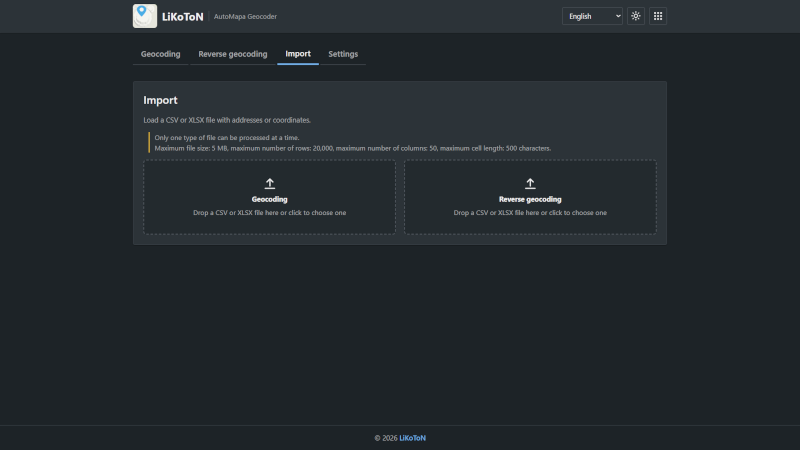
The Import tab is intended for larger jobs.
You upload a CSV or XLSX file either by dragging and dropping it or selecting it from disk, then choose one of two modes:
- Geocoding
- Reverse Geocoding
Only one file can be processed at a time.
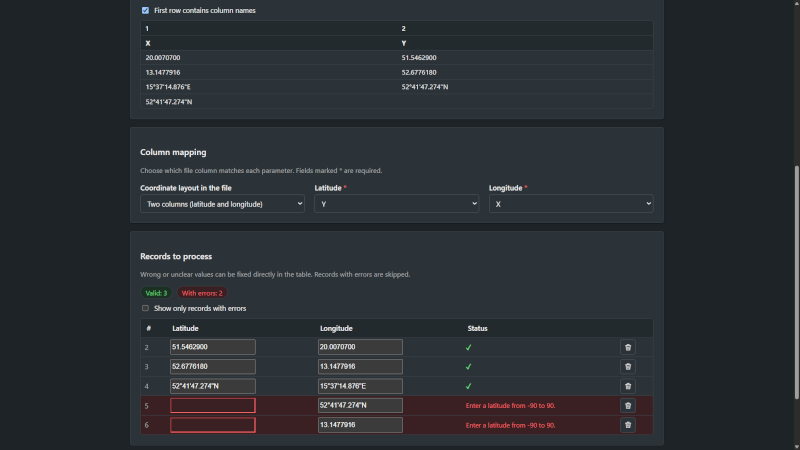
The application then guides you through three steps:
- Column Mapping – You specify which columns contain streets, cities, and other fields. The application attempts to identify columns automatically based on header names. If the file does not contain headers, columns can be identified using the contents of the first row, which is treated as data.
For coordinates, you may select: Two separate coordinate columns, or One column containing both coordinates. For address geocoding, it is also possible to assign a single country to all records. - Record Validation – invalid or unrecognized values, such as: missing city names or out-of-range coordinates are highlighted in red and can be corrected directly in the table. Individual records may also be skipped if necessary.
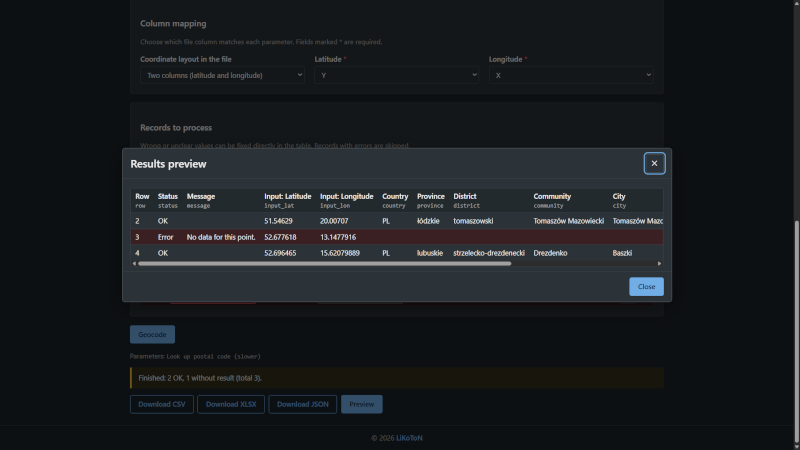
- Processing – the application displays the progress of geocoding or reverse geocoding in real time and allows the process to be canceled. After processing a status summary is displayed. For geocoding jobs, a breakdown of address counts by quality level is provided. The Preview button opens a sample window showing the resulting records.
The application includes default safety limits:
- File size: 5 MB
- Rows: 20,000
- Columns: 50
- Maximum cell length: 500 characters
The current limits are always displayed above the file upload controls.
Exporting results
Results from both single queries and bulk imports can be exported as:
- CSV
- XLSX
- JSON (stored as a text file)
Each exported file begins with the data that was sent to the API, for example Warszafa;Krakofska;2 followed by the geocoder response. This makes it easy to see how the original input translated into the resulting output.
Settings
To use geocoding and reverse geocoding features, an AutoMapa API token and password are required. These credentials can be obtained by contacting the AutoMapa business team: www.automapa.com/contact
Application settings may optionally be stored in the browser, with a configurable retention period.
The API password itself is never stored in the browser’s local storage. However, a password manager can be used to avoid entering it every time.
Additional settings include:
- Selection of visible fields in the geocoding form (required fields cannot be hidden)
- Coordinate format selection
- CSV field separator configuration
- Additional reverse geocoding parameters
- Localization and User Interface
The interface is available in seven languages:
- Polish
- English
- Czech
- Slovak
- German
- French
- Spanish
API messages are also translated. For example, the message Unknown address is automatically displayed as Nieznany adres when using the Polish interface.
The application supports both:
- Light mode
- Dark mode
Tables can be scrolled horizontally by dragging with the mouse.
Security
The application does not communicate directly with the AutoMapa API from the browser.
Instead, it uses a lightweight server-side proxy, ensuring that the token and password stored in the configuration file never reach the browser.
Uploaded files are validated for:
- File type
- File size
- Number of rows
All data originating from forms and uploaded files is displayed strictly as plain text.
In CSV and XLSX exports, cells that could otherwise be interpreted as executable Excel formulas are neutralized to prevent formula injection attacks.
Version:
- 1.2.0

Leave a Reply